


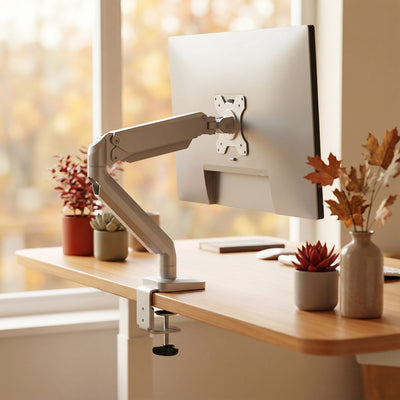


How to Set Up a Proper Ergonomic Home Office (South Africa Guide)
Every element of an ergonomic home office setup, the exact measurements that matter, and the research behind each recommendation. It's long because it's thorough — use the sections you need.

Most home offices in South Africa were never set up. They accumulated. A laptop landed on a table in 2020, a monitor got added at some point, a chair migrated in from the dining room, and five years later your neck hurts by 3pm and you've decided that's just what working feels like.
It isn't. Nearly every common desk-work complaint — neck strain, lower back pain, sore wrists, tired eyes — traces back to a workstation that doesn't fit your body. And fitting a workstation to your body is a solvable problem with known measurements, backed by decades of occupational health research.
What is an ergonomic home office setup?
An ergonomic home office setup is a workstation arranged so that your body stays in a neutral posture while you work — joints naturally aligned, muscles not held under constant tension. The U.S. Occupational Safety and Health Administration (OSHA) defines neutral body positioning as a comfortable working posture in which your joints are naturally aligned, which reduces stress and strain on the muscles, tendons, and skeletal system and reduces your risk of developing a musculoskeletal disorder (OSHA Computer Workstations eTool).
The workstation adjusts to fit you, not the other way around. And per the Canadian Centre for Occupational Health and Safety (CCOHS): there is no uniquely correct working posture that fits a user for an extended period of time — variation and movement matter as much as any single measurement (CCOHS Office Ergonomics).
With those two ideas in place — neutral posture, frequent variation — here's how to build the setup, element by element.

1Set up your ergonomic chair correctly
The chair is the foundation. Get it wrong and everything downstream (desk height, monitor height, keyboard position) is built on a bad base.
Seat height: feet flat, hips level with or slightly above knees
The Mayo Clinic's office ergonomics guide puts it simply: adjust the height of the chair so that your feet rest flat on the floor. Or use a footrest so your thighs are parallel to the floor. The NHS Seating and Ergonomics guidance goes slightly further, recommending hips slightly higher than your knees, which tilts the pelvis forward and helps the spine hold its natural 'S' shape.
If your desk is too high to allow this (more on desk heights below), raise the chair and use a footrest rather than letting your feet dangle.
Lumbar support: fill the curve in your lower back
Your lumbar spine curves inward naturally. Sitting without support flattens that curve and loads the intervertebral discs. Choose a chair with adjustable lumbar support positioned in the hollow of your lower back, or per the Mayo Clinic Health System, place a cushion in the small of your back while sitting in your chair as a stopgap.
CCOHS notes that a chair only becomes ergonomic when it specifically suits a worker's size (body dimensions), their particular workstation, and the tasks that must be performed there — which is why adjustability (seat height, lumbar height, armrest height at minimum) matters more than the "ergonomic" label on the box (CCOHS: Ergonomic Chair).
Armrests: elbows at 90 degrees, shoulders relaxed
Per the Mayo Clinic: position them so your arms sit gently on the armrests with your elbows close to your body and your shoulders relaxed. Armrests set too high push your shoulders into a shrug; too low, and you lean sideways. Both create the neck and shoulder tension most people blame on stress.
In South Africa, a properly adjustable ergonomic chair starts at around R 2,900 (the Essential), with the sweet spot for full-time desk workers around R 4,600–R 5,900 (the Flow and Pro Flow). If you're unsure what your hours and build require, this quiz narrows it down in two minutes.

2Get your desk height right (most desks are too high)
Here's a fact that surprises people: standard fixed desks are built at roughly 74–75 cm, and according to the Humanscale ergonomic workstation guide, a standard 29.5-inch desk height corresponds to the seated elbow height of a man who is 6'4" (193 cm). Unless you're that man, your standard desk is probably too high for you.
The rule: work surface at resting elbow height
The measurement that matters: with your shoulders relaxed and elbows bent at about 90 degrees, your forearms should be roughly parallel to the floor and level with the work surface. The NHS guidance frames it as the middle row of the keyboard level with your elbow and forearm.
If your desk is too high and isn't adjustable, raise your chair to get your elbows to the right height, then add a footrest so your feet stay supported. If the desk is too low, riser feet under the desk solve it cheaply.
Under-desk clearance
The Mayo Clinic guide notes that under the desk, make sure there's clearance for your knees, thighs and feet. Drawers, CPU towers, and storage boxes crammed into the leg space force twisted postures. Clear it out.

3Consider a sit-stand desk (and use it correctly)
What the research actually says about standing desks
Honesty first: a standing desk is not a health miracle. A scoping review of 53 studies published in Applied Ergonomics (Chambers, Robertson, and Baker, 2019) found sit-stand desks are most effective at reducing physical discomfort and changing sitting behaviour during the workday — genuinely valuable for reducing musculoskeletal complaints, less proven for the broader health claims that marketing tends to make.
The CCOHS makes the complementary point that matters most in practice: early studies have indicated that some users tend to return to sitting for the majority of the time after the initial trial period of time. To achieve the benefits of being able to alternate body positions, be sure to continue to do so (CCOHS: Sit/Stand Desk). The desk only helps if you actually use it.
Dr. Alan Hedge, professor emeritus at Cornell University, recommends a cycle of roughly 16 minutes sitting, 8 minutes standing, and 2 minutes of movement every half hour (cited in the Humanscale ergonomic workstation guide). Standing all day is as hard on the body as sitting all day. The goal is alternation, not replacement.
Standing height: same elbow rule
When standing, the same measurement applies: work surface at resting elbow height, per CCOHS — hands, wrists, and forearms are straight, in-line and roughly parallel to the floor. Head is level, forward facing, and balanced. Programmable presets on an electric desk make this practical: store your sitting and standing heights once, then transition with one button press.
In South Africa, electric sit-stand desks with dual motors and safety systems run from around R 12,100–R 13,100 (the Pro Lift and Sit-Stand Desk Pro); a manual option like the QuickStand starts at R 4,347 if you'll realistically adjust once or twice a day rather than continuously.

4Correct monitor height and distance
This is the highest-impact fix in most home offices, and it costs almost nothing.
Monitor height: top of screen at or slightly below eye level
Because humans naturally look slightly downward (about 15 degrees), the top of your monitor should sit at or slightly below eye level when you're sitting back in a supported position. CCOHS specifies the acceptable viewing range: the in-line sight is between the horizontal and 30 degrees below the horizontal (i.e., when viewing the monitor, the monitor is at eye level or slightly below eye level).
Too low (the default for every laptop on a table) and your head tilts forward, loading the neck. Too high and you extend the neck backward. A stack of books works as well as a monitor stand while you're testing the right height.
Monitor distance: about an arm's length
Place the screen roughly an arm's length away — 50 to 75 cm depending on screen size. You shouldn't need to lean forward or squint. If text is too small at that distance, increase the text size rather than pulling the screen closer.
Alignment and dual monitors
Centre the monitor with the midline of your body and your keyboard's spacebar, so your neck isn't rotated all day. With two monitors, put the primary one directly in front and the secondary at an angle beside it (per the Humanscale workstation guide).
The laptop problem
A laptop physically cannot be ergonomic on its own: if the screen is at the right height, the keyboard is wrong, and vice versa. The Mayo Clinic's recommendation: if you use a laptop at your desk, consider getting an external keyboard and mouse, along with a laptop stand, to more closely mimic a desktop computer setup. This trio is the single best sub-R-1,500 upgrade available to any laptop-based worker in South Africa.

5Keyboard and mouse positioning for neutral wrists
The Mayo Clinic guide is specific here: place your mouse within easy reach and on the same surface as your keyboard. While typing or using your mouse, keep your wrists straight, your upper arms close to your body, and your hands at or slightly below the level of your elbows.
Practical rules that follow from the research:
Keep both close to your body. Reaching for a mouse positioned far from the keyboard is one of the most common sources of shoulder strain. The Humanscale guide recommends keeping the mouse as close to your shoulder line as possible to minimise reach distance.
Skip the keyboard kickstand feet. Propping the back of the keyboard up angles your wrists into extension. Flat or slightly negative tilt is better.
Palm support, not wrist pressure. The Humanscale workstation guide notes that resting on the wrists while typing has been shown to roughly double pressure in the carpal tunnel — if you use a support, rest your palms on it between typing bursts, not your wrists during them.
Consider an ergonomic or vertical mouse if you have wrist discomfort. A vertical mouse holds the forearm in a more neutral "handshake" rotation. We don't sell mice, so take this as neutral advice: it's a worthwhile experiment if standard mice bother you, and the Mayo Clinic also suggests alternate the hand you use to operate the mouse by moving the mouse to the other side of your keyboard to distribute load.

6Lighting for a home office that doesn't strain your eyes
Lighting is the most neglected element of home office ergonomics, and poor lighting or screen glare is linked to headaches and eye strain (Humanscale workstation guide). Three rules cover most of it:
Position your monitor perpendicular to windows. A window behind your screen creates contrast glare; a window behind you reflects off the screen. Side-on is right. Use blinds to control direct sun through the day.
Add a task light for paper work. Position it opposite your writing hand to avoid shadows, and angle it across the desk, never at the screen. Worth knowing: lighting needs increase dramatically with age — people in their 60s need roughly 250% more contrast than people in their 20s (Humanscale workstation guide).
Follow the 20-20-20 rule. The American Optometric Association recommends that every 20 minutes, you look at something 20 feet (about 6 metres) away for at least 20 seconds. It resets the eye's focusing muscles and measurably reduces fatigue.

7Movement — the rule that beats every other rule
Every credible source lands on the same conclusion. OSHA: regardless of how good your working posture is, working in the same posture or sitting still for prolonged periods is not healthy. You should change your working position frequently throughout the day. The Mayo Clinic: no matter how well your workspace is set up for proper ergonomics, sitting in the same position for hours at a time isn't good for your body. Get up and walk around as often as you can throughout the workday.
Practical structure for a home worker:
Microbreaks: 2–3 per hour. A microbreak is 30–60 seconds away from the work — a walk to the kettle, a stretch, standing while you read something. The Humanscale guide recommends 2–3 per hour to reduce fatigue and discomfort.
Position changes: every 30 minutes. Hedge's 16/8/2 sit-stand-move cycle is the researched benchmark. Even without a standing desk, standing for phone calls and walking during voice meetings achieves much of the same variation.
Walk properly at least once a day. Home workers lose the incidental movement of office life — the walk to the meeting room, the commute stairs. Replace it deliberately.

8Organisation, cable management, and workspace layout
Organisation is ergonomics. A cluttered desk forces reaching, twisting, and awkward postures dozens of times a day.
Reach zones: arrange by frequency of use
CCOHS teaching guidance describes it well: arrange that a space for your usual work is available directly in front of you. Position objects you need occasionally further away but still within arm's reach — the same logic as cutlery on a table, with the most-used items closest. The Mayo Clinic adds: keep key objects, such as your telephone, stapler or printed materials, close to your body to minimize reaching. Stand up to reach anything that can't be comfortably reached while sitting.
Cable management on a sit-stand desk is not optional
On a fixed desk, messy cables are ugly. On a height adjustable desk, they're a mechanical problem: every up-down cycle drags unmanaged cables, strains connectors, and eventually damages something. The fix is cheap and permanent — a cable tray or spine under the desktop carrying a power strip, so only one cable runs to the wall and everything else travels with the desk. Velcro wraps beat zip ties (you'll re-do the routing more often than you think).
Charging ports and desk power
Phones, earbuds, tablets: if they charge on your desk, give them a dedicated spot with a multi-port charger, rather than cables snaking across your working zone. A desk grommet or edge-mounted power strip keeps day-to-day plugging at desk level so you're not crawling under the desk — a small thing that removes a dozen awkward postures a week.
Storage keeps the surface clear
The working surface should hold what you're working on, not everything you own. A drawer unit or mobile pedestal moves the stapler-and-notebook layer off the desk, and CCOHS is blunt about the goal: avoid having too much clutter on your desk. Under-desk drawers are available as add-ons on most quality sit-stand desks (including ours), or as standalone units.
Phone habits
If you're on calls more than occasionally, use a headset or speaker. The Mayo Clinic: don't cradle the phone between your head and neck — that position, held daily, is a reliable neck-pain generator.

The complete ergonomic home office checklist
Run through this against your current setup:
| Element | The standard | Quick check |
|---|---|---|
| Chair height | Feet flat, thighs parallel, hips level with or slightly above knees | Can you slide a fist between seat edge and calves? |
| Lumbar support | Fills the inward curve of the lower back | Does your lower back touch the backrest without slouching? |
| Armrests | Elbows ~90°, shoulders relaxed | Are your shoulders shrugged? Lower the armrests |
| Desk height | Surface at resting elbow height | Forearms parallel to floor while typing? |
| Monitor height | Top of screen at or slightly below eye level | Is your chin tilting down or up to read? |
| Monitor distance | About an arm's length (50–75 cm) | Fingertips touch the screen at full stretch? |
| Keyboard/mouse | Close to body, wrists straight, same surface | Is the mouse making you reach? |
| Laptop | External keyboard, mouse, and stand/monitor | Is your laptop screen at eye level? |
| Lighting | Monitor perpendicular to windows, task light for paper | Any glare on screen right now? |
| Movement | 2–3 microbreaks/hour, position change every 30 min | When did you last stand up? |
| Cables | Managed in a tray; one cable to the wall | Would your desk survive a height adjustment? |
| Surface | Only active work in the primary zone | Can you see the desk itself? |
Frequently asked questions about ergonomic home office setup
Set up in this order: (1) adjust your chair so your feet are flat and thighs parallel to the floor, with lumbar support in the curve of your lower back; (2) bring your work surface to resting elbow height, so your forearms are parallel to the floor while typing; (3) position the top of your monitor at or slightly below eye level, about an arm's length away; (4) place your keyboard and mouse close to your body on the same surface, keeping wrists straight; (5) position your monitor perpendicular to windows and add a task light; (6) build in movement — 2 to 3 microbreaks per hour and a position change every 30 minutes. Laptop users should add an external keyboard, mouse, and laptop stand, because a laptop's screen and keyboard cannot both be in the correct position at once.
The top of the monitor screen should be at or slightly below eye level when you're sitting back in a supported position, because the eyes naturally look slightly downward. The Canadian Centre for Occupational Health and Safety specifies an acceptable viewing range between horizontal and 30 degrees below horizontal. The screen should be roughly an arm's length away (50–75 cm), centred with your body and keyboard so your neck isn't rotated.
Research published in Applied Ergonomics (a scoping review of 53 studies) found sit-stand desks are most effective at reducing physical discomfort and changing sitting behaviour — genuinely useful for the musculoskeletal complaints of prolonged sitting, though not a substitute for exercise. The benefit depends on actually alternating: Cornell University's Dr. Alan Hedge recommends roughly 16 minutes sitting, 8 standing, and 2 moving per half hour. In South Africa, quality electric sit-stand desks run from about R 12,100; manual options start around R 4,347.
Take 2–3 microbreaks (30–60 seconds) per hour and change position roughly every 30 minutes. For your eyes, follow the American Optometric Association's 20-20-20 rule: every 20 minutes, look at something 20 feet (6 metres) away for at least 20 seconds. Both OSHA and the Mayo Clinic emphasise that no posture, however correct, is healthy when held for hours — movement is the non-negotiable part of any ergonomic setup.
No. The highest-impact changes are free or cheap: raising your monitor (books work), pulling your keyboard and mouse closer, adjusting your chair properly, repositioning your desk relative to the window, and building in movement. The two purchases with the strongest ergonomic case are an adjustable chair with lumbar support (from around R 2,900 in South Africa) and, for laptop users, an external keyboard, mouse, and stand. A sit-stand desk is a genuine upgrade for full-time desk workers but comes after the fundamentals, not before.
The bottom line: build it once, adjust it forever
An ergonomic home office isn't a shopping list. It's a set of measurements — elbow height, eye height, arm's length — applied to whatever you own, plus the discipline of moving regularly. Get the chair right first, then the desk height, then the monitor, then the small stuff. Most of it costs nothing to fix today.
Where equipment genuinely helps: a properly adjustable ergonomic chair, a sit-stand desk if you're at the desk full-time, and decent cable management so the whole thing stays functional. If you want a recommendation matched to your hours, height, and budget, the Find Your Fit quiz takes two minutes, or talk to us directly.
Your body keeps the score on your workstation. Set it up properly and it stops keeping score at all.


